
ALPHA ONE - TECHNICAL SUPPORT EXECUTIVE
Showing posts with label TRICKS. Show all posts
Showing posts with label TRICKS. Show all posts
Wednesday, 26 September 2012


Download Unlimited From Rapidshare without premium account.
Download Unlimited From Rapidshare without premium account.

Today I will tell two 100% working and tested ways to download unlimited from rapidshare without premium account.
So read on..
First of all Things That we Need:
1. Any web browser (chrome or Mozilla etc..)
2. Download accelerator ( I prefer Internet Download Manager IDM )
I have Explored two Sites which generates the premium links for rapidshare and have resume facility.
You can use them to download unlimited from rapidshare.
SITE 1
SITE 2
METHOD TO DOWNLOAD FROM SITE 1:
Visit site1 (click on the link above).
Signup for free and then sign in your account.
Copy your Rapidshare link and place it there and download at high speed with resume facility.
METHOD FOR SITE2 :
Paste your Rapidshare Download link there and hit download.
Saturday, 22 September 2012
VLC Media Player Trick

VLC Media Player Trick
>> Open VLC Media Player
>> Press Ctrl + N
>> Type.. screen://
'(withoutthequotes)
>> Click On Play
>> Now , Wait & Watch

:- PANKAJ TIWARI
Saturday, 15 September 2012
How to create CON folder in windows XP

How to create CON folder in windows XP
CON , PRN , AUX , NUL , CLOCK$ , COM1 ,COM2 , COM3 , COM4 , COM5 , COM6 , COM7 , COM8 , COM9 , COM , LPT1 , LPT2 , LPT3 , LPT4 , LPT5 , LPT6 , LPT8 , LPT9
So Now, Try this...
Open the Command prompt by Start -> Run and typing cmd
Code:
C:\> md \\.\c:\con
Now, try to delete the folder from My computer
OOPS!!! You cant delete it...
Now, try this in command prompt console
Code:
C:\> rd \\.\c:\con
Friday, 7 September 2012
MY START MENU NAME CHANGE

============================
:- PANKAJ TIWARI
First step
Explorer.exe is found in Windows folder and must be edited enable the renaming of the start button. Because we are dealing with a binary file, we need to use a file editor. I successfully edited the file using the Resource Hacker application. It is a free program available for download from Softpedia. Once you have downloaded it, extract all the data from the archive and run ResHacker. Now open the explorer.exe.
In the left, you can see an information tree. Expand String table > 37 or 38 (37 string is for the normal XP layout and 38 one is for the classic layout). You just select the one suitable for your Windows and then select 1033. In the right, line 578 display Start between quotes. Rename it with the desired name and then click the Compile Script button which is placed above.
It's time to save the new version of the explorer.exe. Click save as from the file menu and save it with a different name. I chose softpedia.exe.
 |  |
Step two
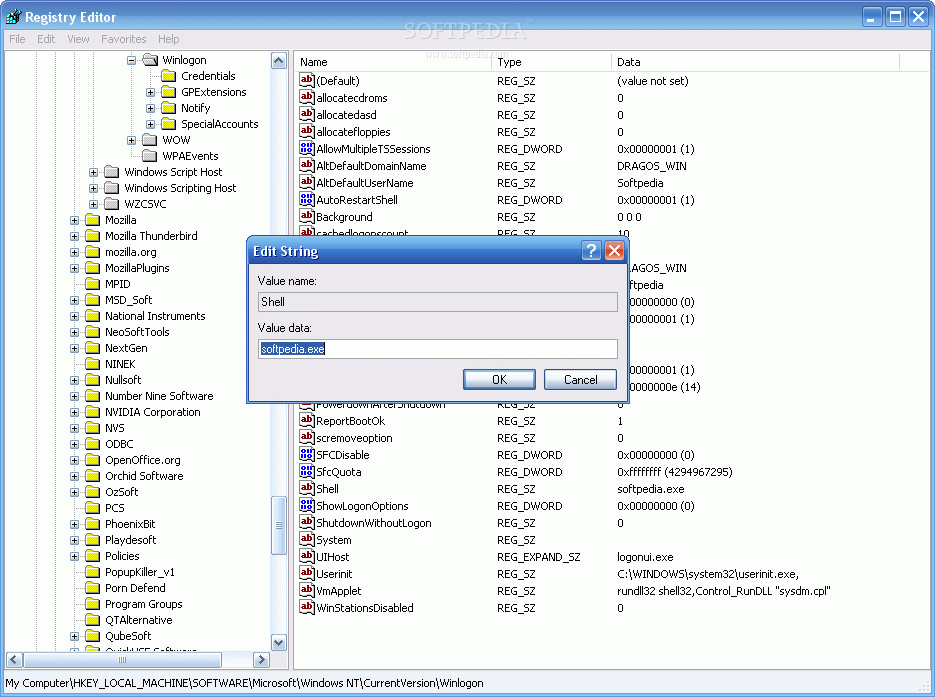
Go to start > Run and type Regedit to open the registry editor. Look for this path:
HKEY_LOCAL_MACHINE>SOFTWARE>Microsoft>Windows NT>CurrentVersion>Winlogon
In the right, find the "Shell" entry. Double click on it and replace explorer.exe with softpedia.exe (or whatever you renamed the edited file).
Close the registry editor and Log Off or Restart your computer. After Windows XP boots, the new start button will have the name you have chosen.
 |  |
My tip is not to use long names because the start button will have to adapt in order to be able to show such names and its shape will be elongated and might not look too pleasant.
Subscribe to:
Posts (Atom)